How to use Lyria 3 on PlayLyria
Write a music prompt, choose vocals or instrumental, generate a track, and download the MP3. Here is how the PlayLyria workflow works.
Choose the right entry point
PlayLyria generates music with Google’s Lyria 3 Pro and Clip models through WaveSpeed. A PlayLyria account and credit balance are separate from a Gemini account, a Google subscription, or a Google API billing account.
The WaveSpeed API guide explains direct API access. On PlayLyria, the music form is on the home page, so you can prepare a prompt without signing in.
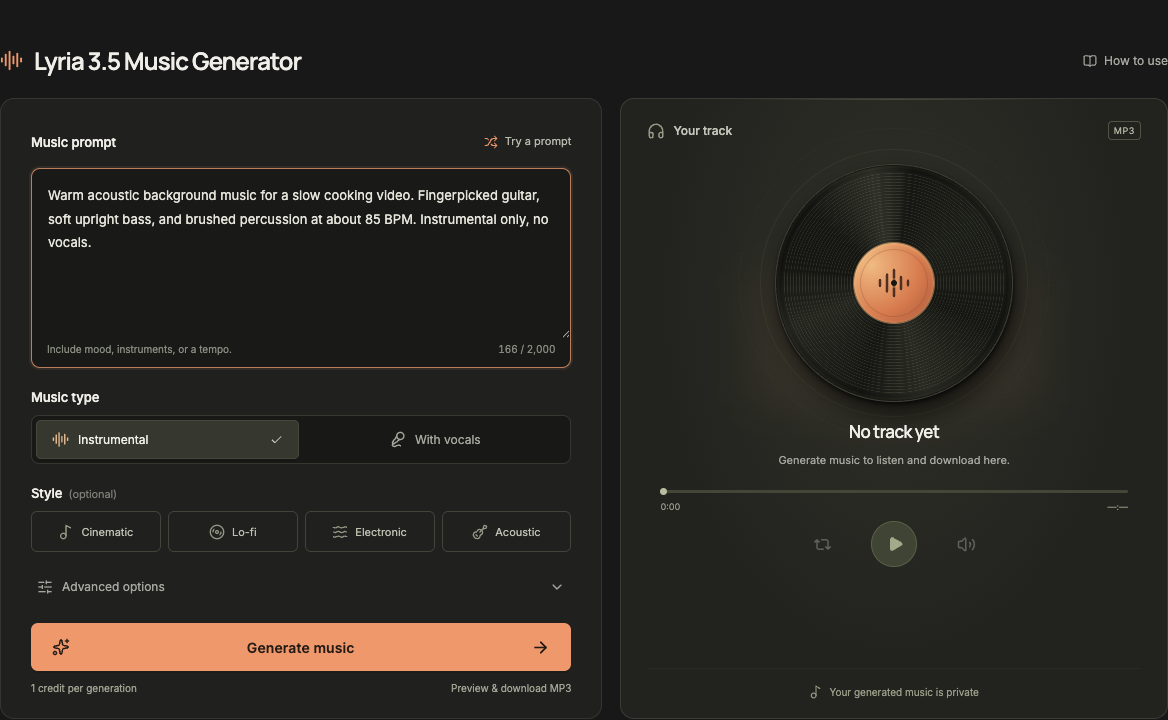
1. Choose a model and describe the track
The Model menu starts with Lyria 3 Pro. Choose Lyria 3 Clip for a short clip. Your selection is saved with the draft and stays selected when you apply a prompt template. Lyria 3.5 is upcoming and cannot be selected.
Write what the music is for, how it should feel, and which instruments should lead. A short, specific description is easier to revise than a long list of conflicting styles.
Warm acoustic background music for a slow cooking video. Fingerpicked guitar, soft upright bass, and brushed percussion at about 85 BPM. Keep the melody gentle and leave space for narration. Instrumental only, no singing or humming.
The prompt library has 24 written starting points. Use prompt opens a template in the generator. If a draft is already present, you can keep it or replace it. Copy prompt copies the full description and any supplied lyrics.
2. Choose instrumental music or vocals
Select Instrumental for music without singing. Select With vocals to reveal a lyrics language and an optional custom lyrics field. Leaving lyrics blank asks the model to write them. Entered lyrics are submitted as written.
The Cinematic, Lo-fi, Electronic, and Acoustic buttons add style guidance to the request. They do not set fixed musical parameters. Advanced options lets you name instruments and request an approximate duration; the final length can differ.
3. Start a generation
Click Generate music. Sign in if needed, then check your credit balance. Clip reserves 1 credit per track; Pro reserves 2. These credits are spent when the audio is available, or returned if the track cannot be delivered.
After signing in, return to the preserved form and submit it. You remain in control of when a paid generation begins. If the service is not accepting generations yet, the page explains that no credit has been used.
4. Check the result
The track may be queued, generating, or preparing audio. These are task states, not a percentage estimate. You can close the page and later open My Music to check the same task.
When the result is ready, press play. Audio does not start automatically. The player shows the actual track duration and supports seeking, pause, and mute.
5. Download and keep your file
Choose Download MP3 from the result or your library. Private audio is stored for 30 days after delivery. Download a copy before the expiry date displayed in My Music.
Reuse prompt lets you edit the original input. Generate again creates a separate track and uses 1 credit for Clip or 2 for Pro; it does not modify the original recording. The original remains in your library until it expires or you delete it.